
8.4 KiB
Installation
TABLE OF CONTENTS
- Prerequisites
- Plasma components
- KWin components
- Miscellaneous components
- Configuring AeroThemePlasma
Prerequisites
NOTE: Dependencies for other disros besides Arch Linux have been provided by contributors and aren't updated frequently, which may result in incorrect or missing dependencies.
Arch Linux
Required packages:
pacman -S cmake extra-cmake-modules ninja qt6-virtualkeyboard qt6-multimedia qt6-5compat plasma-wayland-protocols plasma5support kvantum base-devel
- (optionally) plymouth
Kubuntu
Required Packages:
apt install build-essential cmake ninja-build curl libqt6virtualkeyboard6 libqt6multimedia6 libqt6core5compat6 libplasma5support6 libkdecorations2-dev libkf6colorscheme-dev libkf6i18n-dev libkf6iconthemes-dev libkf6kcmutils-dev libkirigami-dev libkf6kio-dev libkf6notifications-dev libkf6svg-dev libkf6crash-dev libkf6globalaccel-dev libplasma-dev libplasmaactivities-dev libxcb-composite0-dev libxcb-randr0-dev libxcb-shm0-dev libxcb-damage0-dev libepoxy-dev libqt6svg6-dev kwin-dev plasma-wayland-protocols
Fedora KDE
Required Packages:
dnf install plasma-workspace-devel kvantum qt6-qtmultimedia-devel qt6-qt5compat-devel libplasma-devel qt6-qtbase-devel qt6-qtwayland-devel plasma-activities-devel kf6-kpackage-devel kf6-kglobalaccel-devel qt6-qtsvg-devel wayland-devel plasma-wayland-protocols kf6-ksvg-devel kf6-kcrash-devel kf6-kguiaddons-devel kf6-kcmutils-devel kf6-kio-devel kdecoration-devel kf6-ki18n-devel kf6-knotifications-devel kf6-kirigami-devel kf6-kiconthemes-devel cmake gmp-ecm-devel kf5-plasma-devel libepoxy-devel kwin-devel kf6-karchive kf6-karchive-devel plasma-wayland-protocols-devel qt6-qtbase-private-devel qt6-qtbase-devel plymouth-devel plymouth-plugin-script
Compiling
To build the components that need to be compiled (KWin effects, Decoration theme, etc.), run compile.sh:
$ chmod +x compile.sh && ./compile.sh
or
$ sh compile.sh
Plasma components
This section relates to the directories found in the plasma folder.
-
Move the
smodfolder to~/.local/share, or/usr/share/for a system-wide installation. This will install the resources required by many other components in this project. -
Move the folders
desktoptheme,look-and-feel,plasmoids,layout-templates,shellsinto~/.local/share/plasma. If the folder doesn't exist, create it. These folders contain the following:- Plasma Style
- Global Theme (more accurately, just the lock screen)
- Plasmoids
- Plasma shell
- Preset panel layout that can be applied from Edit mode
-
Move
sddm-theme-modto/usr/share/sddm/themes. Optionally, to enable the Vista start screen, setenableStartup=trueintheme.conf.user -
Import and apply the color scheme through System Settings.
-
When applying the global theme, only apply the splash screen and uncheck everything else.
KWin components
This section relates to the directories found in the kwin folder.
- Move
effects,tabbox,outline,scriptsto~/.local/share/kwin. - In System Settings, apply the following settings:
- In Window Behavior -> Titlebar Actions:
- Mouse wheel: Do nothing
- In Window Behavior -> Task Switcher:
- Main: Thumbnail Seven, Include "Show Desktop" entry
- Alternative: Flip Switch, Forward shortcut: Meta+Tab
- In Window Behavior -> KWin Scripts:
- Enable Minimize All, SMOD Peek
- In Window Behavior -> Desktop Effects, enable the following:
- Aero Glass Blur
- Aero Glide
- Desaturate Unresponsive Applications
- Fading Popups
- Login
- SMOD Glow
- SMOD Snap
- Squash
- SMOD Peek
- Dim Screen for Administrator Mode
- In Window Behavior -> Desktop Effects, disable the following:
- Background Contrast
- Blur
- Maximize
- Sliding Popups
- Dialog Parent
- Dim Inactive
- Logout
Miscellaneous components
This section relates to the directories found in the misc folder.
- Move the
Kvantumfolder (the one inside thekvantumfolder) to~/.config, then in Kvantum Manager select the theme. - Unpack the sound archive and move the folders to
~/.local/share/sounds, then select the sound theme in System Settings. - Unpack the icon archive and move the folder to
~/.local/share/icons, then select the icon theme in System Settings. - Unpack the cursor archive and move the folder to
/usr/share/icons, then follow this guide to install the cursor theme. - Move the files located in
mimetypeinto~/.local/share/mime/packagesand then runupdate-mime-database ~/.local/share/mimeto fix DLLs and EXE files sharing the same icons. - Segoe UI, Segoe UI Bold, Segoe UI Semibold and Segoe UI Italic are required for this theme and they should be installed as system-wide fonts.
If SDDM fails to pick up on the cursor theme, go to System Settings -> Startup and Shutdown -> Login Screen (SDDM), and click on Apply Plasma Settings to enforce your current cursor theme, and other relevant settings. Do this after installing everything else. If even that fails, change the default cursor theme in /usr/share/icons/default/index.theme to say aero-drop.
Configuring AeroThemePlasma
-
After installing everything, restart KDE Plasma and KWin.
-
On a fresh KDE install, remove the default panel and add the "AeroThemePlasma Taskbar" panel using Edit mode. You can also manually configure the panel for a finer setup.
-
Disable the following entries in the system tray settings:
- Power and Battery
- Networks
- Keyboard Layout
- Audio Volume
And enable the following entries:
- Battery
- Network Management
- Sound Mixer
-
When updating KDE Plasma, usually through a full system upgrade, recompiling KWin effects and the DefaultToolTip component is necessary.
-
In System Settings -> Session -> Desktop Session, uncheck the "Ask for confirmation" option.
-
In System Settings -> Keyboard -> Shortcuts, under KWin, disable the "Peek at Desktop" shortcut, and remap the "MinimizeAll" to Meta+D
-
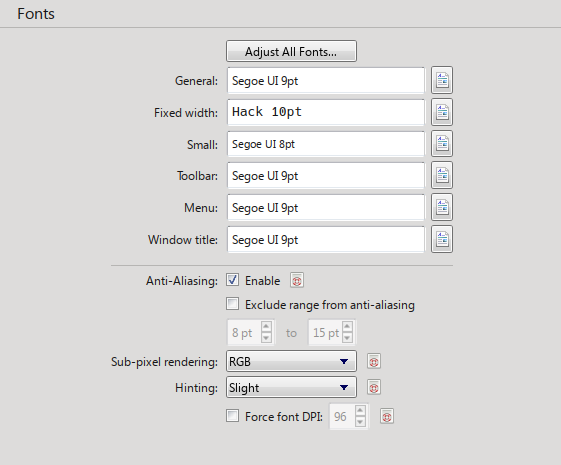
In System Settings -> Fonts, configure the fonts as shown here:
The following steps are optional:
- To enable full font hinting just for Segoe UI, move the
fontconfigfolder to~/.config. This will enable full font hinting for Segoe UI while keeping slight font hinting for other fonts. Additionally, appendQML_DISABLE_DISTANCEFIELD=1into/etc/environmentin order for this to be properly applied. While full font hinting makes the font rendering look sharper and somewhat closer to Windows 7's ClearType, on Linux this option causes noticeably faulty kerning. This has been a prominent issue for several years now and while the situation has improved from being unreadable to just being ugly, a complete solution for this doesn't seem to be coming anytime soon. - For Wine users it's recommended to install the VistaVG Ultimate msstyles theme.
- To install custom branding at the Info Center, move
kcm-about-distrorcfrom thebrandingfolder to~/.config/kdedefaults/, then edit the file'sLogoPathentry to point to the absolute path ofkcminfo.png. - Add the following to
~/.bashrcto get bash to look more like the command prompt on Windows:
PS1='C:${PWD//\//\\\\}> '

echo -e "Microsoft Windows [Version 6.1.7600]\nCopyright (c) 2009 Microsoft Corporation.  All rights reserved.\n"
- In the terminal emulator of your choice (e.g Konsole), set the font to TerminalVector, size 9pt. Disable smooth font rendering and bold text, reduce the line spacing and margins to 0px, set the cursor shape to underline, and enable cursor blinking.