Makepad open harmony quick build example for Linux-x64, Windows and MacOS
Please plug an OpenHarmony device into your PC via USB.
## Install DevEco
Downlaod DevEco from this page:
For `Linux-x64`, there is no `DevEco Studio` for `Linux`, please use the `Command Line Tools`

For `Windows` and `MacOS`, please install `DevEco Studio`

Make sure you can compile and run 'Hello, world!' with the `DevEco Studio`
## Install toolchain
Run the following command to install needed tools for building the Open Harmony applications
```
cargo makepad ohos install-toolchain
```
## Create DevEco Project
Note: if you are building for an OpenHarmony simulator/emulator, make sure to set the `MAKEPAD=ohos_sim` environment variable
either permanently in your shell, or in front of each command below.
Run the following command to create a DevEco project for the `makepad-example-simple`
```
cargo makepad ohos --deveco-home= deveco -p makepad-example-simple --release
```
`deveco-home` can also be specified by environment variable `DEVECO_HOME`
```
DEVECO_HOME=<$HOME/command-line-tools> cargo makepad ohos deveco -p makepad-example-simple --release
```
After this command, it would generates a DevEco Project in `target/makepad-open-harmony/makepad_example_simple`
## Signing With DevEco
Use `DevEco studio` to sign the project, for the Linux user, please copy the project to Windows/MacOS, then sign it with `DevEco studio`
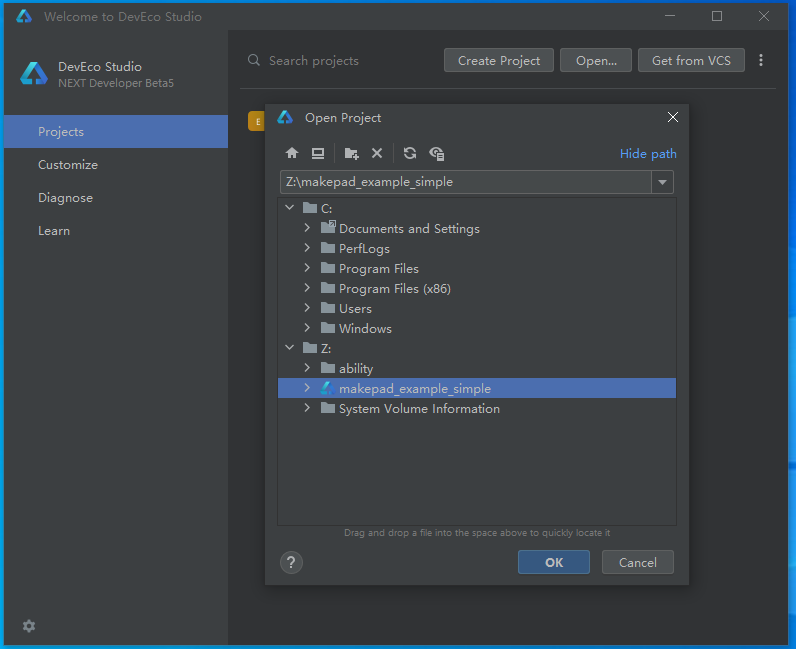
Open the project with `DevEco`
Click `File` -> `Project Structure` -> `Signing Configs` -> `Sign in`
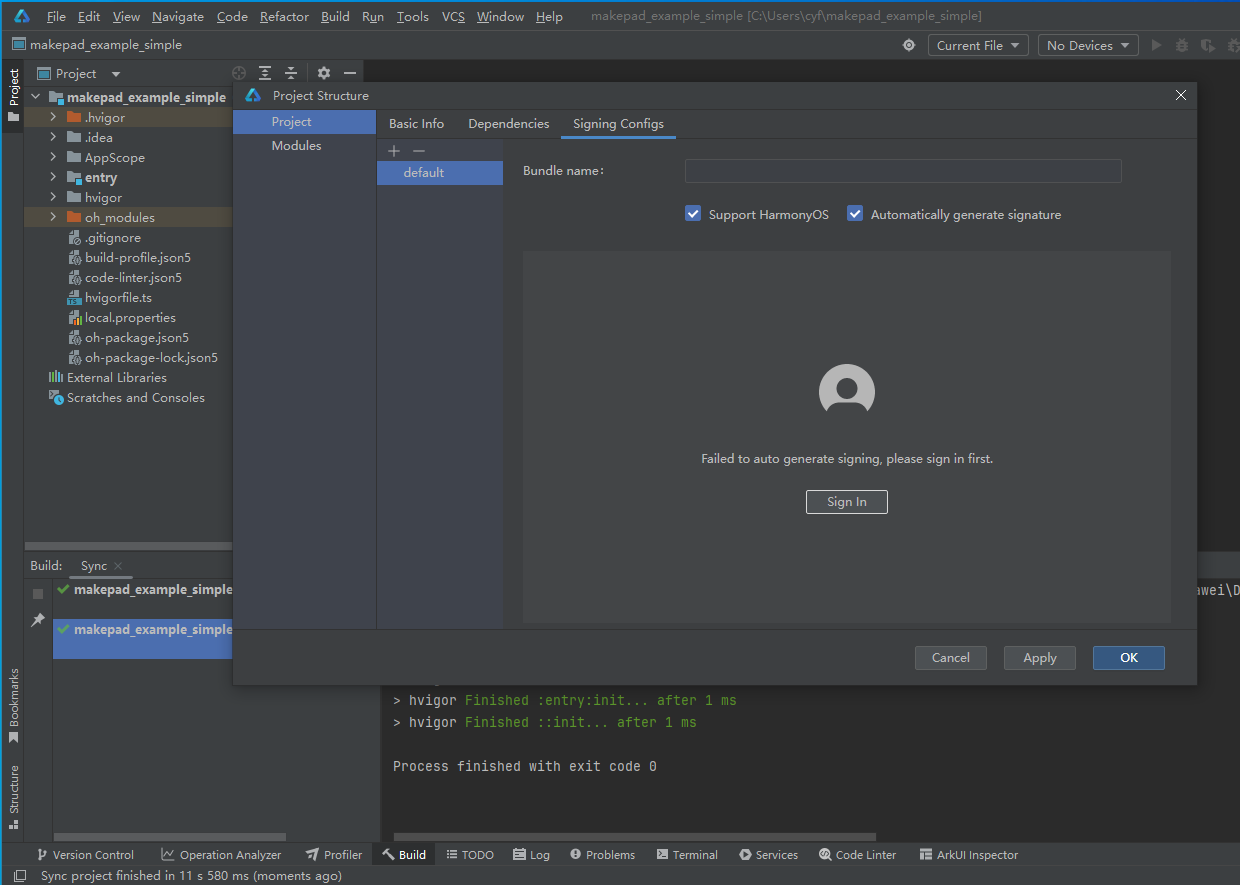
After signing in, make sure to click the "Apply" button on the bottom right of the `Signing Configs` pane.
Then, the DevEco IDE will auto-populate the `signingConfigs` array within the `build-profile.json5` file,
which should be located at the path:
`target/makepad-open-harmony/makepad_example_simple/build-profile.json5`
The contents of that file will look something like this (we have redacted the paths and password fields):
```json
{
"app": {
"signingConfigs": [
{
"name": "default",
"type": "HarmonyOS",
"material":{
"certpath": "",
"storePassword": "xxxxxxxxx",
"KeyAlias": "debugKey",
"KeyPassword": "yyyyyyyyyy",
"profile": "",
"signAlg": "SHA256withECDSA",
"storeFile": ""
}
}
],
"products": [
{
"name": "default",
"signingConfig": "default",
"compatibleSdkVersion": "5.0.0(12)",
"runtimeOS": "HarmonyOS",
}
],
"buildModeSet": [
{
"name": "debug",
},
{
"name": "release"
}
]
},
"modules": [
{
"name": "makepad",
"srcPath": "./entry",
"targets": [
{
"name": "default",
"applyToProducts": [
"default"
]
}
]
}
]
}
```
For the `Linux` user please copy the relevant files and edit `build-profile.json5` manually.
## Build/Run with Deveco
For the Windows/MacOs user, you can directly use `DevEco Studio` to build and run
## Build/Run in Command line
Run the following command to build and `makepad-example-simple` in Open Harmony Device
```
cargo makepad ohos --deveco-home= run -p makepad-example-simple --release
```
`deveco-home` can also be specified by environment variable `DEVECO_HOME`
```
DEVECO_HOME=<$HOME/command-line-tools> cargo makepad ohos run -p makepad-example-simple --release
```
After this command, it would generates a Hap file in `target/makepad-open-harmony/makepad_example_simple/entry/build/outputs/default/makepad-default-signed.hap`
## HDC Remote
`PC A` could access `Open Harmony Device` with `hdc`, but the `makepad` project is in `PC B`, and it can access `PC A` with network
start `HDC Remote` in `PC A`
```
hdc -s :8710 -m
```
In `PC B`, it can access the `Open Harmony Device` with the following command
```
cargo makepad ohos --deveco-home= --remote=:8710 run -p makepad-example-simple --release
```
`remote` can also be specified by environment variable `HDC_REMOTE`
```
DEVECO_HOME=<$HOME/command-line-tools> HDC_REMOTE=:8710 cargo makepad ohos run -p makepad-example-simple --release
```
## References
-
-