# Installation
## TABLE OF CONTENTS
1. [Prerequisites](#preq)
2. [Getting started](#started)
3. [Compiling](#compile)
4. [Plasma components](#plasma)
5. [KWin components](#kwin)
6. [Miscellaneous components](#misc)
7. [Configuring AeroThemePlasma](#conf)
## Prerequisites
**NOTE**: Dependencies for other disros besides Arch Linux have been provided by contributors and aren't updated frequently, which may result in incorrect or missing dependencies.
### Arch Linux
Required packages:
```bash
pacman -S git cmake extra-cmake-modules ninja qt6-virtualkeyboard qt6-multimedia qt6-5compat plasma-wayland-protocols plasma5support kvantum base-devel
```
### Note:
Since Plasma 6.4, the X11 session has been separated from the main codebase. On Arch Linux, additional dependencies for X11 include:
- `kwin-x11`
- `plasma-x11-session`
KSysGuard has been officially deprecated by KDE, however an unofficial [port](https://github.com/zvova7890/ksysguard6) exists for Qt6, which can be installed using the [AUR](https://aur.archlinux.org/packages/ksysguard6-git) package on Arch-based distros.
### Fedora KDE
Required Packages:
```bash
dnf install plasma-workspace-devel kvantum qt6-qtmultimedia-devel qt6-qt5compat-devel libplasma-devel qt6-qtbase-devel qt6-qtwayland-devel plasma-activities-devel kf6-kpackage-devel kf6-kglobalaccel-devel qt6-qtsvg-devel wayland-devel plasma-wayland-protocols kf6-ksvg-devel kf6-kcrash-devel kf6-kguiaddons-devel kf6-kcmutils-devel kf6-kio-devel kdecoration-devel kf6-ki18n-devel kf6-knotifications-devel kf6-kirigami-devel kf6-kiconthemes-devel cmake gmp-ecm-devel kf5-plasma-devel libepoxy-devel kwin-devel kf6-karchive kf6-karchive-devel plasma-wayland-protocols-devel qt6-qtbase-private-devel qt6-qtbase-devel kf6-knewstuff-devel kf6-knotifyconfig-devel kf6-attica-devel kf6-krunner-devel kf6-kdbusaddons-devel kf6-sonnet-devel plasma5support-devel plasma-activities-stats-devel polkit-qt6-1-devel qt-devel libdrm-devel
```
### Note:
On Fedora, additional dependencies for X11 include:
- `kwin-x11`
- `kwin-x11-devel`
## Getting started
To download this repository, clone it with `git`:
```bash
$ git clone https://gitgud.io/wackyideas/aerothemeplasma.git aerothemeplasma
$ cd aerothemeplasma
```
It's highly recommended to use git for downloading AeroThemePlasma as updating becomes much easier.
There are two ways to install AeroThemePlasma: Using the provided install scripts, and manual installation. In both cases, further configuration is required by the user.
## Compiling
To build the components that need to be compiled (KWin effects, Decoration theme, etc.), run `compile.sh`:
```bash
$ chmod +x compile.sh && ./compile.sh
```
or
```bash
$ sh compile.sh
```
You can additionally pass `--ninja` to any of the following scripts in order to build using Ninja, which is recommended to reduce build times:
- `compile.sh`
- `install_plasmoids.sh`
- Any individual `install.sh` script
Example:
```bash
$ sh compile.sh --ninja
```
## Note for Wayland users:
The compile script must be run while passing the `--wayland` argument for KWin effects:
```bash
$ ./compile.sh --wayland --ninja
$ sh compile.sh --wayland --ninja # Or like this
```
If compiling individual KWin effects by running their respective `install.sh` scripts, you can also pass the `--wayland` argument there:
```bash
$ ./install.sh --wayland --ninja
$ sh install.sh --wayland --ninja # Or like this
```
### Updating AeroThemePlasma
Whenever a new update is released, update the downloaded repository by pulling the new changes:
```bash
$ cd /path/to/aerothemeplasma
$ git pull
```
and re-run the install scripts:
```sh
$ sh compile.sh
$ sh install_plasmoids.sh
$ sh install_plasmoids.sh --no-compile # If there's no need to recompile the C++ parts of the plasmoids, you can just run this
$ sh install_kwin_components.sh
$ sh install_plasma_components.sh
$ sh install_misc_components.sh # Usually not required to run again
```
Typically it's enough to run the first four scripts after ATP has been updated, although it's recommended to check new commits to see what has actually changed.
When doing a full system upgrade, KWin effects and `libplasma` modifications tend to stop working. Running `compile.sh` after a full system upgrade is required for them to work again (assuming no breaking upstream changes).
## Plasma components
This section relates to the directories found in the `plasma` folder.
### Install scripts
1. Run the following scripts:
```bash
$ chmod +x install_plasmoids.sh && ./install_plasmoids.sh --ninja
$ chmod +x install_plasma_components.sh && ./install_plasma_components.sh # Requires authorization for SMOD resources and SDDM themes
```
### Note for SevenTasks:
SevenTasks relies on modifications found in `misc/libplasma` in order to work properly. Make sure that they're compiled and installed correctly before enabling SevenTasks.
### Manual
1. Move the `smod` folder to `~/.local/share`, or `/usr/share/` for a system-wide installation. This will install the resources required by many other components in this project.
2. Move the folders `desktoptheme`, `look-and-feel`, `plasmoids`, `layout-templates`, `shells` into `~/.local/share/plasma`. If the folder doesn't exist, create it. These folders contain the following:
- Plasma Style
- Global Theme (more accurately, just the lock screen)
- Plasmoids
- Plasma shell
- Preset panel layout that can be applied from Edit mode
3. Move `sddm-theme-mod` to `/usr/share/sddm/themes`. Optionally, to enable the Vista start screen, set `enableStartup=true` in `theme.conf.user`
4. Import and apply the color scheme through System Settings.
## KWin components
### Install scripts
1. Run the following script:
```bash
$ chmod +x install_kwin_components.sh && ./install_kwin_components.sh
```
### Manual
This section relates to the directories found in the `kwin` folder.
1. Move `effects`, `tabbox`, `outline`, `scripts` to `~/.local/share/kwin`.
2. Run the following inside `~/.local/share/`:
```bash
$ ln -s kwin kwin-x11
$ ln -s kwin kwin-wayland
```
3. In System Settings, apply the following settings:
- In Window Behavior -> Titlebar Actions:
- Mouse wheel: Do nothing
- In Window Behavior -> Task Switcher:
- Main: Thumbnail Seven, Include "Show Desktop" entry
- Alternative: Flip Switch, Forward shortcut: Meta+Tab
- In Window Behavior -> KWin Scripts:
- Enable Minimize All, SMOD Peek (**Wayland users should keep SMOD Peek disabled as it doesn't work and can cause freezing**)
- In Window Behavior -> Desktop Effects, enable the following:
- Aero Glass Blur
- Desaturate Unresponsive Applications
- SMOD Glow
- SMOD Snap
- Dim Screen for Administrator Mode
- Animations for SevenTasks Thumbnails
- In Window Behavior -> Desktop Effects, **disable** the following:
- Background Contrast
- Blur
- Maximize
- Dialog Parent
- Dim Inactive
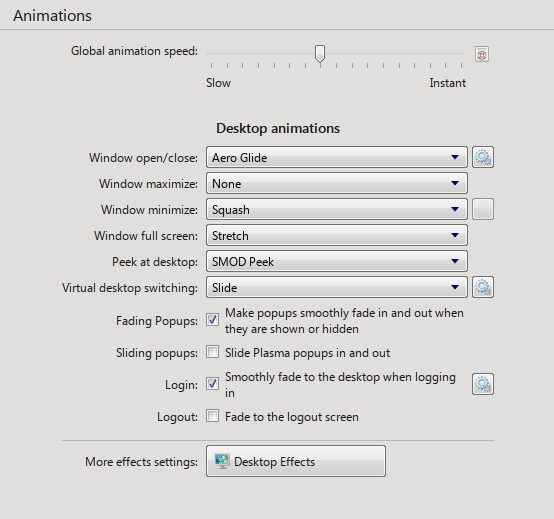
4. Configure KWin animations to the following:
## Miscellaneous components
### Install scripts
1. Run the following script:
```bash
$ chmod +x install_misc_components.sh && ./install_misc_components.sh
```
This section relates to the directories found in the `misc` folder.
1. Move the `Kvantum` folder (the one inside the `kvantum` folder) to `~/.config`, then in Kvantum Manager select the theme.
2. Unpack the sound archive and move the folders to `~/.local/share/sounds`, then select the sound theme in System Settings.
3. Unpack the icon archive and move the folder to `~/.local/share/icons`, then select the icon theme in System Settings.
4. Unpack the cursor archive and move the folder to `/usr/share/icons`, then follow [this](https://www.youtube.com/watch?v=Dj7co2R7RKw) guide to install the cursor theme.
5. Move the files located in `mimetype` into `~/.local/share/mime/packages` and then run `update-mime-database ~/.local/share/mime` to fix DLLs and EXE files sharing the same icons.
6. Segoe UI, Segoe UI Bold, Segoe UI Semibold and Segoe UI Italic are required for this theme and they should be installed as system-wide fonts.
If SDDM fails to pick up on the cursor theme, go to System Settings -> Startup and Shutdown -> Login Screen (SDDM), and click on Apply Plasma Settings to enforce your current cursor theme, and other relevant settings. Do this _after_ installing everything else. If even that fails, change the default cursor theme in `/usr/share/icons/default/index.theme` to say `aero-drop`.
### Plymouth theme
Optionally, install [PlymouthVista](https://github.com/furkrn/PlymouthVista) which supports Windows 7 boot animations, and features a more detailed setup guide.
## Polkit User Account Control modification
# WARNING:
## Installing random modifications to programs that deal with privilege escalation (giving sudo or root access to users) from unknown or untrustworthy sources is reckless and a giant security risk. Even though this modification to KDE's polkit authentication UI is purely cosmetic, it's generally not recommended to modify sensitive applications such as this. If you don't know what you're doing, or do not trust the modified source code, do not install this particular component of AeroThemePlasma.
1. Navigate to the `uac-polkitagent` folder, and run `install.sh`:
```bash
$ chmod +x install.sh && ./install.sh --ninja
```
2. To remove the minimize and maximize buttons from the window, run `add_rule.sh` which will generate the appropriate KWin rule:
```bash
$ chmod +x add_rule.sh && ./add_rule.sh
```
## Configuring AeroThemePlasma
1. Apply the Global Theme after installing everything. Make sure to restart KDE Plasma and KWin as well, by restarting your session.
2. On a fresh KDE install, **remove** the default panel and add the "AeroThemePlasma Taskbar" panel using Edit mode. You can also manually configure the panel for a finer setup.
3. Right click on the desktop and open "Desktop and Wallpaper", and select "Desktop (Win7)" under Layout, and apply the changes.
4. In System Settings -> Colors & Themes -> Colors, set "Accent color from color scheme"
5. In System Settings -> Session -> Desktop Session, uncheck the "Ask for confirmation" option.
6. In System Settings -> Keyboard -> Shortcuts, under KWin, disable the "Peek at Desktop" shortcut, and remap the "MinimizeAll" to Meta+D
7. In System Settings -> Colors & Themes -> Cursors -> Configure Launch Feedback, set Cursor feedback to "None"
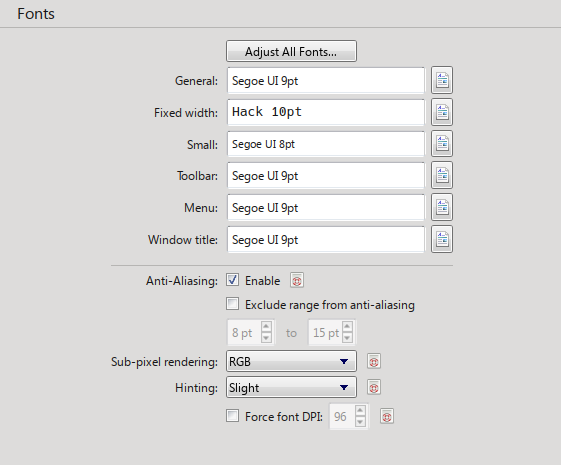
8. In System Settings -> Fonts, configure the fonts as shown here:
 The following steps are optional:
9. To enable full font hinting just for Segoe UI, move the `fontconfig` folder to `~/.config`. This will enable full font hinting for Segoe UI while keeping slight font hinting for other fonts. Additionally, append `QML_DISABLE_DISTANCEFIELD=1` into `/etc/environment` in order for this to be properly applied. _While full font hinting makes the font rendering look sharper and somewhat closer to Windows 7's ClearType, on Linux this option causes noticeably faulty kerning. This has been a [prominent](https://github.com/OpenTTD/OpenTTD/issues/11765) [issue](https://gitlab.gnome.org/GNOME/pango/-/issues/656) [for](https://gitlab.gnome.org/GNOME/pango/-/issues/463) [several](https://gitlab.gnome.org/GNOME/pango/-/issues/404) [years](https://github.com/harfbuzz/harfbuzz/issues/2394) [now](https://www.phoronix.com/news/HarfBuzz-Hinting-Woe) and while the situation has improved from being unreadable to just being ugly, a complete solution for this doesn't seem to be coming anytime soon._
10. For Wine users it's recommended to install the [VistaVG Ultimate](https://www.deviantart.com/vishal-gupta/art/VistaVG-Ultimate-57715902) msstyles theme.
11. To install custom branding at the Info Center, move `kcm-about-distrorc` from the `branding` folder to `~/.config/kdedefaults/`, then edit the file's `LogoPath` entry to point to the absolute path of `kcminfo.png`.
12. Add the following to `~/.bashrc` to get bash to look more like the command prompt on Windows:
```bash
PS1='C:${PWD//\//\\\\}> '
echo -e "Microsoft Windows [Version 6.1.7600]\nCopyright (c) 2009 Microsoft Corporation. All rights reserved.\n"
```
14. In the terminal emulator of your choice (e.g Konsole), set the font to [TerminalVector](https://www.yohng.com/software/terminalvector.html), size 9pt. Disable smooth font rendering and bold text, reduce the line spacing and margins to 0px, set the cursor shape to underline, and enable cursor blinking.
The following steps are optional:
9. To enable full font hinting just for Segoe UI, move the `fontconfig` folder to `~/.config`. This will enable full font hinting for Segoe UI while keeping slight font hinting for other fonts. Additionally, append `QML_DISABLE_DISTANCEFIELD=1` into `/etc/environment` in order for this to be properly applied. _While full font hinting makes the font rendering look sharper and somewhat closer to Windows 7's ClearType, on Linux this option causes noticeably faulty kerning. This has been a [prominent](https://github.com/OpenTTD/OpenTTD/issues/11765) [issue](https://gitlab.gnome.org/GNOME/pango/-/issues/656) [for](https://gitlab.gnome.org/GNOME/pango/-/issues/463) [several](https://gitlab.gnome.org/GNOME/pango/-/issues/404) [years](https://github.com/harfbuzz/harfbuzz/issues/2394) [now](https://www.phoronix.com/news/HarfBuzz-Hinting-Woe) and while the situation has improved from being unreadable to just being ugly, a complete solution for this doesn't seem to be coming anytime soon._
10. For Wine users it's recommended to install the [VistaVG Ultimate](https://www.deviantart.com/vishal-gupta/art/VistaVG-Ultimate-57715902) msstyles theme.
11. To install custom branding at the Info Center, move `kcm-about-distrorc` from the `branding` folder to `~/.config/kdedefaults/`, then edit the file's `LogoPath` entry to point to the absolute path of `kcminfo.png`.
12. Add the following to `~/.bashrc` to get bash to look more like the command prompt on Windows:
```bash
PS1='C:${PWD//\//\\\\}> '
echo -e "Microsoft Windows [Version 6.1.7600]\nCopyright (c) 2009 Microsoft Corporation. All rights reserved.\n"
```
14. In the terminal emulator of your choice (e.g Konsole), set the font to [TerminalVector](https://www.yohng.com/software/terminalvector.html), size 9pt. Disable smooth font rendering and bold text, reduce the line spacing and margins to 0px, set the cursor shape to underline, and enable cursor blinking.